ImapKit Desktop for Windows
ImapKit Desktop is a mock mail server for testing email clients and apps that send or read mail. It runs ImapKit for IMAP and an SMTP server that delivers into the same mailboxes, and shows everything that happens in a native Windows app: which clients are connected, every line of the protocol they speak, and the mail in the mailboxes. A built-in plaintext client lets you type IMAP and SMTP commands yourself.
The link always downloads the latest release. Release notes and earlier versions are on the releases page. It is free and open source under the MIT license, the source code is at postalsys/imapkit-desktop.
Requirements
- 64-bit Windows 10 or Windows 11.
- The Microsoft Edge WebView2 runtime, which shows the message bodies. It is part of Windows 11 and Windows Update installs it on Windows 10, so it is almost always there already. Without it the app works, but message bodies are not shown.
Node.js does not need to be installed, the app brings its own.
Installing
Run ImapKitDesktop-Setup.exe. It installs for the current user without administrator rights, into %LOCALAPPDATA%\Programs\ImapKit Desktop, and adds a Start menu shortcut and an entry in Installed apps.
The setup, the app and the uninstaller are signed by Postal Systems OÜ. Each release also has a hashes.txt with the SHA-256 checksum of the setup, signed with the Postal Systems release GPG key, if you want to check a download.
Updating: Help > Check for Updates tells you when a newer version is out. Running the setup of a newer version updates the installed app in place: a running copy is closed first and saves its mailboxes, and your mailboxes and settings are kept.
Uninstalling: remove ImapKit Desktop from Installed apps in Windows Settings. The uninstaller asks whether to delete the mailboxes and settings too.
For scripted installs, ImapKitDesktop-Setup.exe /S installs silently.
The app comes with its own copy of Node.js and a few open source libraries, each under its own permissive license. Their license texts are in THIRD-PARTY-NOTICES.txt in the installation folder, Help > Third-Party Notices opens it.
Getting started
The server starts as soon as the app opens. With the default settings it listens on this computer only:
| Service | Address | Security |
|---|---|---|
| IMAP | localhost:1143 | STARTTLS, or none |
| IMAP with implicit TLS | localhost:1993 | SSL/TLS |
| SMTP | localhost:1025 | STARTTLS, or none |
Log in to IMAP as testuser with the password testpass. The Email client settings box on the Server page lists the settings to copy into an email client, and its Copy button puts them on the clipboard.
The certificate is self-signed for localhost, so an email client asks you to accept it the first time, or needs its certificate check turned off for this server.
Then:
- Add the account to the email client or point your app at the server.
- Open the Connections page to watch the client log in, select mailboxes and fetch messages.
- Send a message through the SMTP port and see it arrive on the Messages page, and in the email client.
The Server page
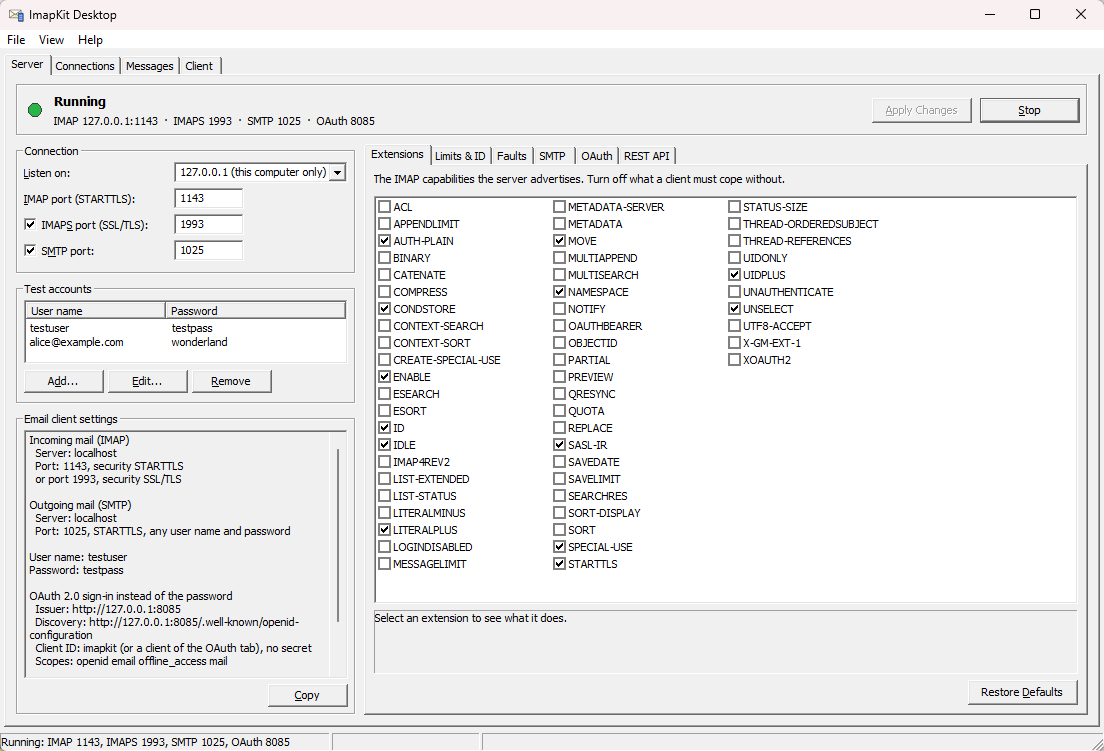
The banner at the top shows whether the server runs, and where. Stop and Start turn it off and on, and Apply Changes restarts it with edited settings. Mailboxes are kept over a restart.
-
Connection: the address to listen on,
127.0.0.1for this computer only or0.0.0.0for all network interfaces (to test from a phone, a virtual machine or another computer; Windows Firewall asks to allow it), and the IMAP, IMAPS and SMTP ports. IMAPS and SMTP can be turned off. -
Test accounts: the user names and passwords IMAP accepts. All accounts see the same mailboxes. The tabs on the right change how the server behaves:
-
Extensions: the capabilities the server advertises. Turn an extension off to see how a client copes without it, select one to read what it does. See Extensions.
-
Limits & ID: limits that make the server refuse what goes over them, the largest message (APPENDLIMIT), a quota for storage and message count (QUOTA, optionally only a warning), the messages per command (MESSAGELIMIT or SAVELIMIT) and the largest literal. Each limit shows whether the extension it needs is turned on. Below them, the answer to the ID command: the server says
ID NILunless you fill in fields likenameandversionand turn them on, to look like a server a client knows. -
Faults: quirk presets that make the server behave like a known real server, and script rules that make it misbehave on purpose, like dropping the connection or answering slowly.
-
SMTP: rules of the SMTP server, see SMTP rules.
-
OAuth: a test OAuth 2.0 / OpenID Connect provider, so an email client can sign in through the browser, see OAuth sign-in.
-
REST API: turns on the REST API of ImapKit, so a test script can change the mailboxes while the app runs.
SMTP rules
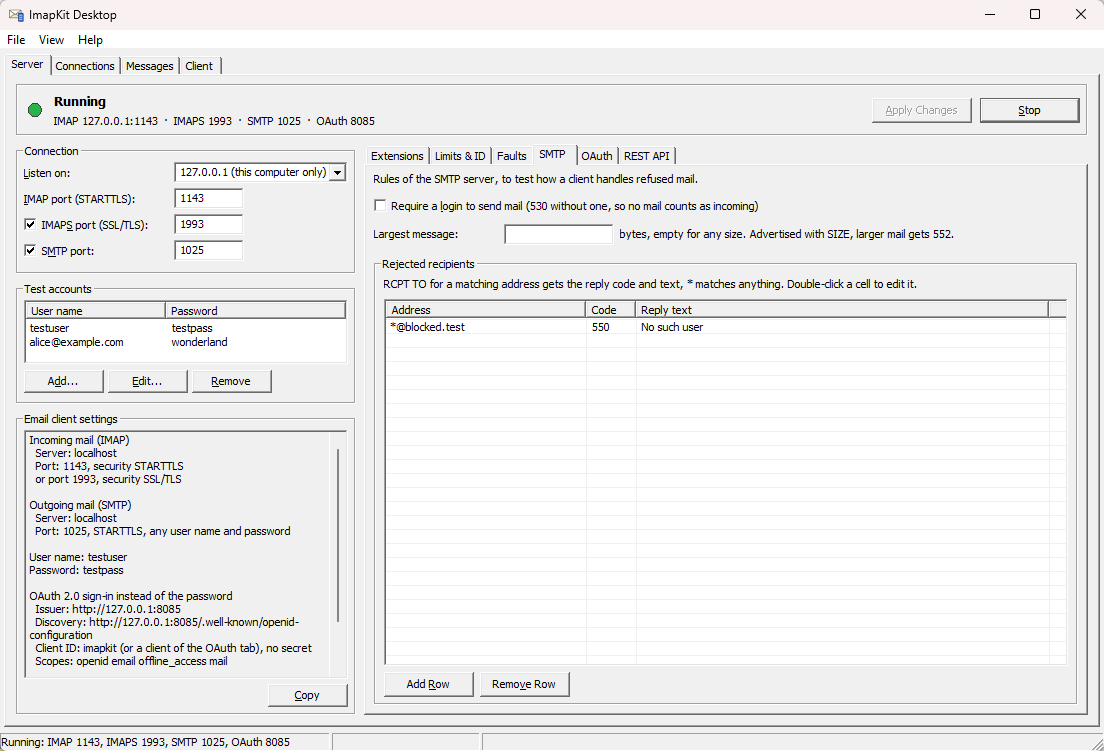
To test how an app handles mail that is refused:
- Require a login answers
530to a client that sends without logging in. All mail then goes to the Outbox. - Largest message is advertised with
SIZE, larger mail gets552. - Rejected recipients is a table of addresses that
RCPT TOrefuses with the reply code and text of the row.*matches anything, so*@blocked.testrefuses a whole domain. Add Row adds one, double-click a cell (or press F2) to edit it, Tab moves to the next cell.
OAuth sign-in
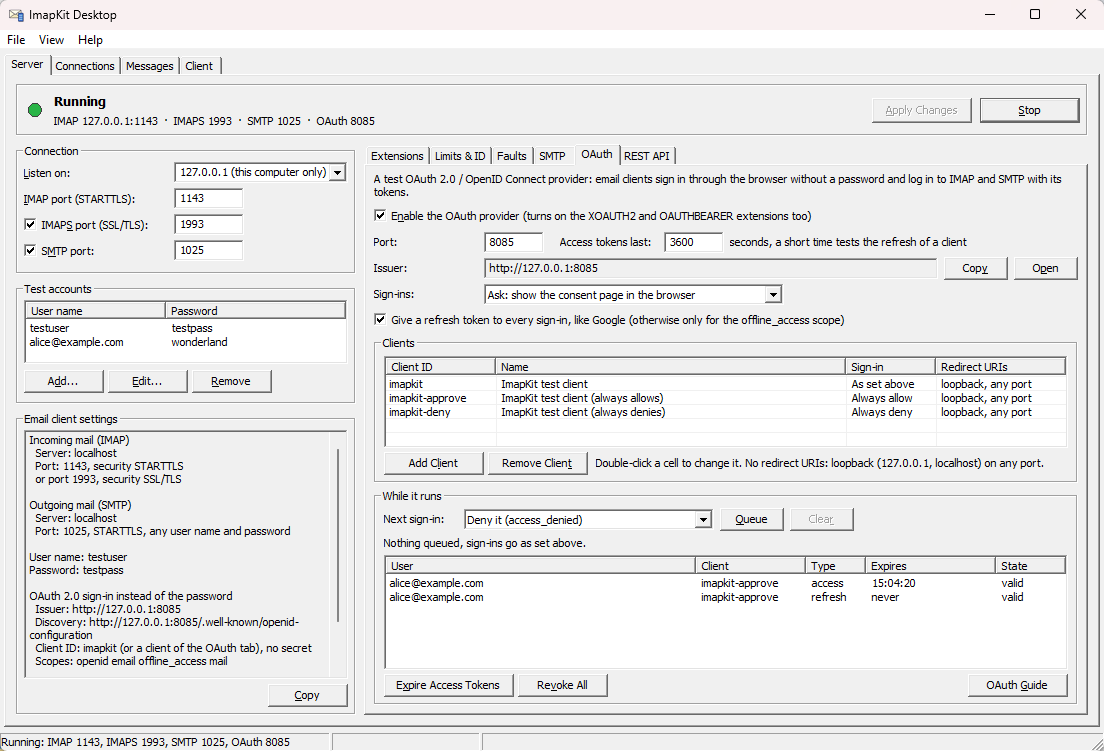
The OAuth tab turns on the OAuth 2.0 and OpenID Connect provider of ImapKit, for testing the sign-in of an email client without a real Google or Microsoft account. It needs no passwords: a sign-in shows a consent page in the browser where you pick an account and click Allow or Deny, or it is allowed or denied right away. The tokens log in to IMAP (XOAUTH2, OAUTHBEARER, which the tab turns on) and to SMTP (AUTH XOAUTH2).
- Issuer: where the client finds the provider, its discovery document is at
<issuer>/.well-known/openid-configuration. Copy puts it on the clipboard, Open shows the provider's page with the clients and users in the browser. The Email client settings box lists the issuer and a client ID too. - Sign-ins: what a sign-in does by default: Ask (the consent page), Always allow or Always deny.
- Access tokens last: a short time, like 60 seconds, tests how the client refreshes them. With Give a refresh token to every sign-in checked the provider behaves like Google, otherwise refresh tokens come only for the
offline_accessscope. - Clients: the client IDs the provider knows,
imapkit,imapkit-approve(always allows) andimapkit-deny(always denies) to begin with. Add a row for the client ID your app uses. Double-click a cell to change it: the Sign-in cell picks what a sign-in of that client does, an empty Redirect URIs cell accepts127.0.0.1andlocalhoston any port, which is what desktop apps use. - While it runs: Next sign-in answers only the next sign-in in a chosen way, to test the error paths of a client: denied, failing with
temporarily_unavailableorserver_error, a redirect with a wrongstateoriss, or no redirect at all. The token list shows every token with its state, Expire Access Tokens makes the next login with them fail like an expired token, Revoke All like a revoked sign-in.
The ID token names the account by its user name, and email clients log in with it, so add a test account named like an address, such as alice@example.com. The tab says so while no account is named like one. Every step of a sign-in is logged on the Connections page, as lines of the oauth session.
The Connections page
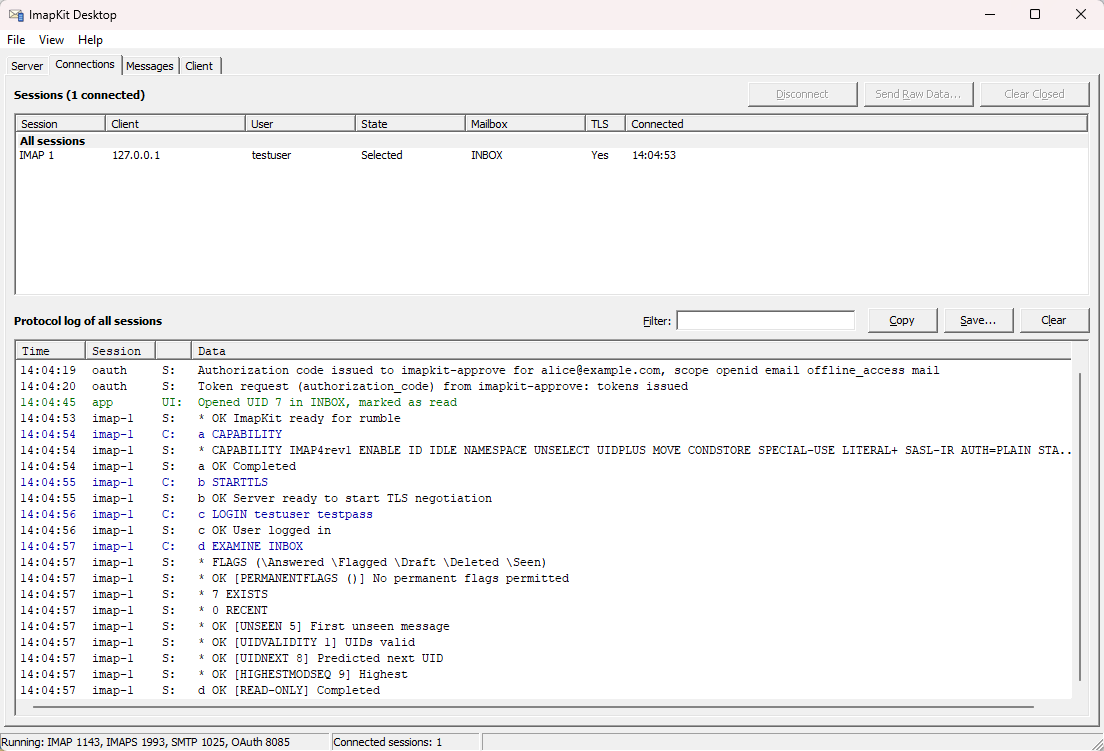
The upper list has the IMAP and SMTP sessions, with the user, the state, the selected mailbox and whether the connection is encrypted. Closed sessions stay in the list, grayed out, until you clear them.
The lower list is the protocol log of the selected session, or of all sessions. The log shows the plain protocol also when the connection uses TLS or COMPRESS. Client lines are blue, server lines black, and changes you make in the app (a message deleted or marked read) are logged between them in green, so you can see the notifications the server then sends to the clients.
- Type into Filter to show only lines that contain the text.
- Right-click a line to copy it, or only its protocol data. Copy copies the selected lines, or all shown lines when none is selected, and Save writes the log to a file.
- Disconnect closes the selected session, as a server would.
- Send Raw Data writes your own text to an IMAP session, like
* OK [ALERT] Maintenance in 5 minutes, to test how a client handles unexpected responses.
The Messages page
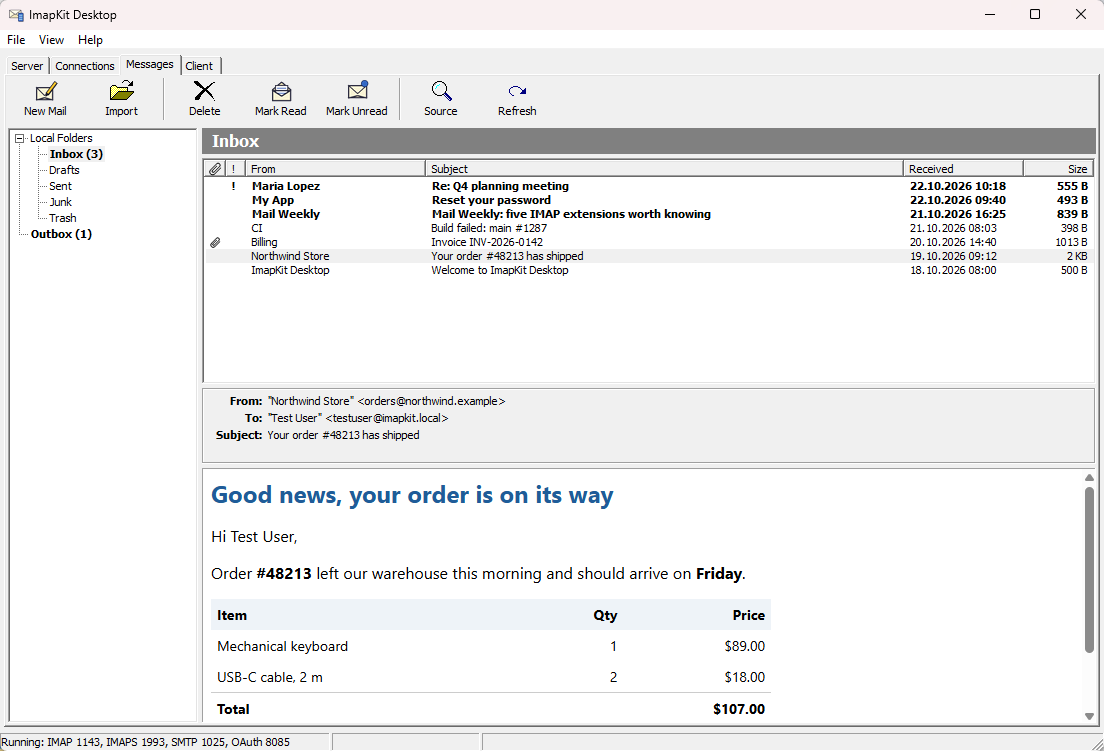
The Messages page is a mail reader in the style of Outlook Express. The folder tree has the mailboxes of the server under Local Folders, and the Outbox. Changes that clients make show up right away, and the changes you make here reach connected clients like changes by another client would.
- Select a message to read it. HTML messages are shown in a sandbox: scripts do not run and pictures from the internet are blocked until you click the yellow bar above the message.
- The toolbar and the right-click menu mark messages read or unread, flag, move and delete them, and show the source of a message.
- Attachments are listed on the Attach line under the headers, embedded images too. Click the line to save one of them, or all at once.
- Quoted reply history and forwarded messages are folded behind a Show quoted text button.
- New Mail writes a message into a mailbox. Import adds
.emlfiles, and you can also drag them onto the list. A message can be saved as an.emlfile. - Folders can be created, renamed and deleted from the right-click menu of the folder tree.
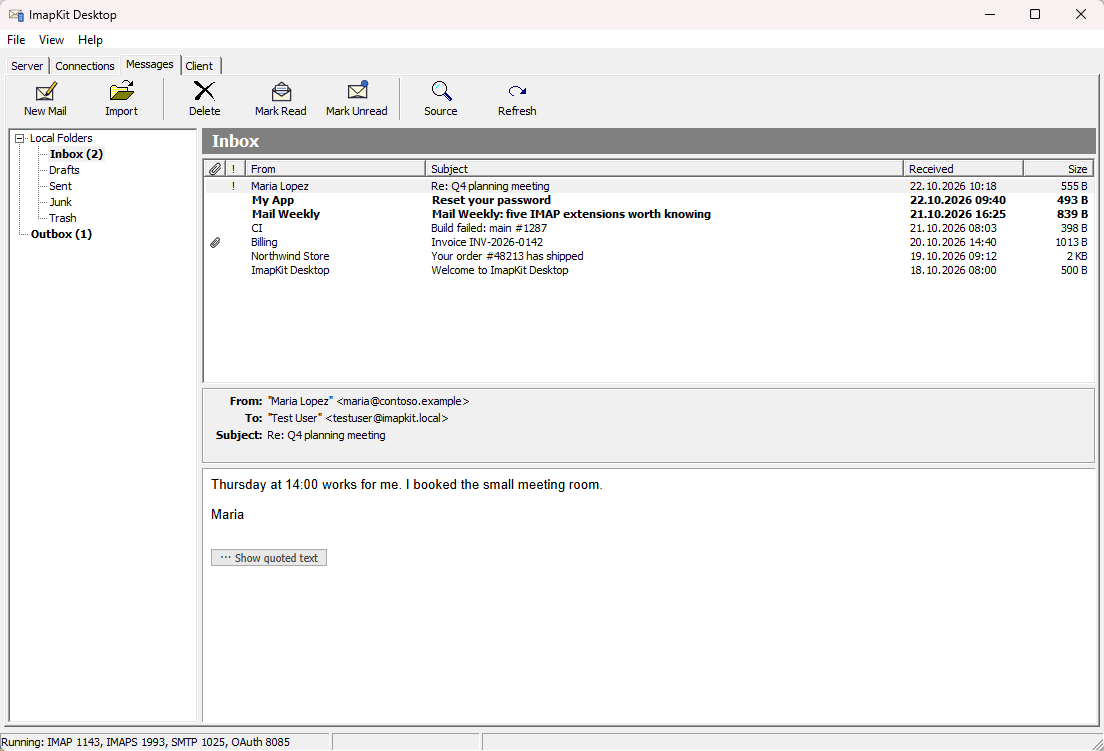
Inbox and Outbox
What happens to mail that arrives over SMTP depends on whether the client logged in:
- Without a login the mail counts as incoming mail and is delivered to the Inbox, like mail from the internet would be.
- With a login (any user name and password work) the client is sending mail, like through the submission server of a mail provider. The message goes to the Outbox with its SMTP envelope, Bcc recipients included, and is not delivered anywhere.
So an app under test can send real mail through ImapKit Desktop and you can check what it sent, without any message leaving your computer. Deliver to, in the right-click menu of an Outbox message, moves it into a mailbox as if the mail had arrived there, and Empty Outbox, in the right-click menu of the Outbox, deletes everything in it.
The Client page
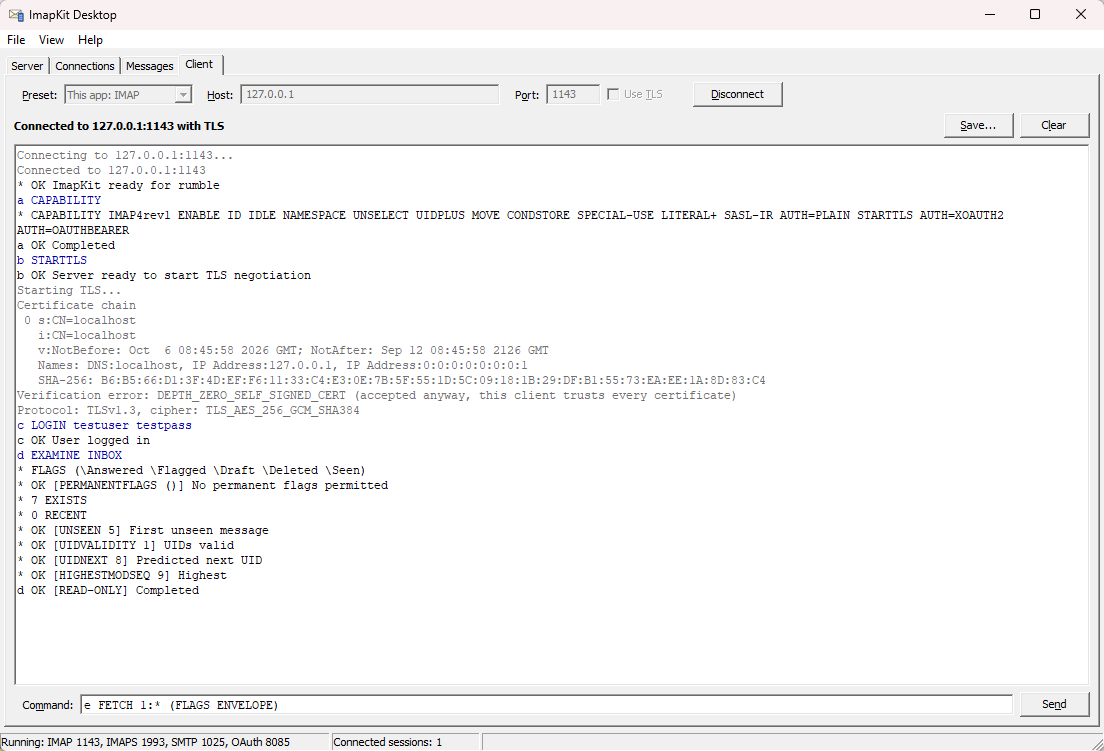
The Client page is a plaintext client like telnet or openssl s_client, for typing IMAP or SMTP commands by hand. It connects to any host and port, not just to this app; the presets fill in the servers of this app.
- Use TLS starts the connection with TLS. Every certificate is accepted, self-signed and expired ones too, and the console shows the certificate chain, the verification result, the protocol and the cipher.
- In a plaintext session, sending
STARTTLS(IMAPa STARTTLS, SMTPSTARTTLS) upgrades the connection to TLS once the server agrees, and shows the same details. - Type a command and press Enter to send it with CRLF. Up and Down recall earlier lines. Your lines are blue, what the server sends is black, and connection news is gray.
- Save writes the session to a text file, Clear empties the console.
A session with this app's own servers also shows up on the Connections page, with its protocol log.
Running in the background
ImapKit Desktop is a server, so closing the window while the server runs does not stop it: the app goes on in the notification area of the taskbar (on Windows 11 the icon may be under the ^ arrow until you pin it). Its tooltip shows where the server listens.
- Click the icon to open the window again.
- Right-click it to stop or start the server, or to exit.
- File > Exit quits the app. With the server stopped, closing the window quits too.
Starting ImapKit Desktop again while it runs opens the running copy, there is only one per user.
Where the data is
The mailboxes and settings are saved in %APPDATA%\ImapKitDesktop and survive restarts and updates.
- File > Export Mailboxes saves all mailboxes and messages as a JSON file in the format of the
storageoption, so a test suite can start ImapKit with exactly the mailboxes you prepared in the app. - File > Import Mailboxes replaces the mailboxes with such a file.
- File > Reset Mailboxes goes back to the mailboxes of a fresh install.
Help
The email client can not connect. Check that the banner on the Server page says Running and that the client uses the same port and security as the Email client settings box. Port 1143 expects STARTTLS or no encryption, port 1993 expects SSL/TLS from the start. Use localhost or 127.0.0.1 as the server name.
The server does not start, the port is in use. Another program, or another copy of ImapKit Desktop, already listens on that port. Enter a free port on the Server page and click Apply Changes.
The email client warns about the certificate. That is expected, the certificate is self-signed. Accept it for this server.
Login fails. IMAP accepts only the test accounts on the Server page. The log on the Connections page shows the exact answer the server sent.
A client on another computer, phone or virtual machine can not connect. Set Listen on to 0.0.0.0 (all network interfaces), apply, allow the app in Windows Firewall, and connect to the IP address of the Windows computer.
Message bodies are empty. The WebView2 runtime is missing. Install the Evergreen runtime from Microsoft and restart the app.
Mail sent by my app is not in the Inbox. The app logged in to SMTP, so its mail is in the Outbox. See Inbox and Outbox.
Start over with clean mailboxes. File > Reset Mailboxes.
I closed the window but clients can still connect. The server keeps running in the notification area, see Running in the background. Right-click the icon and choose Exit to stop it.
A limit has no effect. Most limits need their extension: the Limits & ID tab says next to each one whether it is turned on. Turn it on on the Extensions tab and click Apply Changes.
Found a bug or missing a feature? Open an issue at postalsys/imapkit-desktop. Problems with the IMAP behavior itself belong to ImapKit.